韌體更新的作用 / Why Update Firmware at All?
韌體(firmware)為控制裝置硬件運作的底層軟件。廠商推出更新,一般為達致以下目的:
Firmware is the low-level software controlling how the hardware operates. Manufacturers issue updates typically to:
- 修正已知的效能問題及程式缺陷 / Fix known performance issues and bugs
- 改善系統穩定性,減少死機或自動重啟 / Improve stability
- 提升應用程式兼容性 / Improve app compatibility
- 優化影像解碼及網絡連線 / Optimise video decoding and connectivity
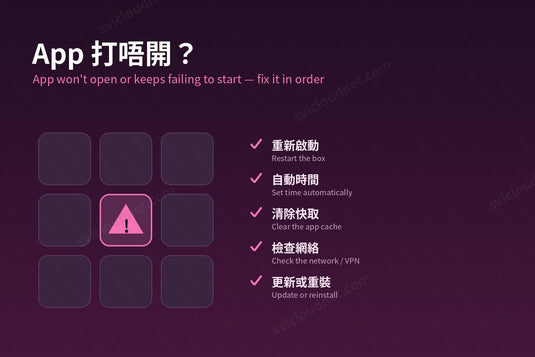
若裝置出現間歇性問題,而重新啟動及清理快取均無法解決,檢查是否有韌體更新為值得嘗試的步驟。
If you are seeing intermittent problems that restarting and clearing caches do not resolve, checking for a firmware update is a worthwhile step.
更新前的準備 / Before You Update
-
確保電源穩定:更新過程中斷電為導致裝置無法開機的首要原因。請勿於雷暴或供電不穩期間進行更新。
Ensure stable power — loss of power mid-update is the number one cause of bricking. -
確保網絡穩定:如可行請使用有線連接,或確保無線訊號良好。
Use Ethernet if available, or ensure strong WiFi. -
預留足夠儲存空間:更新檔案需要空間下載及解壓。
Free up storage for the update package. -
記錄現有設定:部分更新會重設偏好設定。
Note your current settings — some updates reset preferences. -
預留充裕時間:請勿於即將觀看節目前開始更新。
Don't start an update right before you want to watch something.
更新步驟 / The Update Procedure
- 於主畫面進入設定 / Open Settings
- 尋找「關於」或「系統更新」選項 / Find About or System Update
- 選擇檢查更新 / Select Check for updates
- 如有可用更新,確認下載 / Confirm the download
- 下載完成後,按指示開始安裝 / Follow the prompts to install
- 等待更新完成,期間請勿進行任何操作 / Wait for it to finish — do nothing during this time
- 裝置將自動重新啟動,首次開機時間可能較長,屬正常現象 / The device will reboot; a slower first boot is normal
更新期間的五項禁忌 / Five Things Never to Do During an Update
-
切勿拔除電源 — 最重要的一項。
Never unplug the power. - 切勿拔除 HDMI 或網絡線 / Don't disconnect HDMI or Ethernet.
- 切勿按下重啟或關機 / Don't press restart or power off.
- 切勿同時安裝其他應用程式 / Don't install other apps.
-
即使畫面似乎停頓亦須耐心等候 — 更新過程中畫面靜止一段時間屬正常。
Be patient even if the screen appears frozen.
更新後仍有問題 / Still Having Issues After Updating?
如更新後出現新問題,可先嘗試清理應用程式快取,或將裝置還原至原廠設定並重新設定(設定 → 更多 → 重置)。詳細步驟請參閱 安裝教學 及 問題排解頁面。
If new issues appear after an update, try clearing app caches, or restore factory defaults and set up again. See our Setup Guide and Troubleshooting page.
如裝置於更新後完全無法開機,請即時 聯絡我們,並參閱 售後服務與保固。
If the device will not boot at all after an update, contact us immediately and refer to After-Sales Service & Warranty.
延伸閱讀 / Related Reading
支援與教學 / Support & Guides
- 查詢訂單 — Track Your Order(輸入訂單編號即可查看物流狀態 / live carrier status)
- 小雲盒子完整安裝教學 — Complete Setup Guide
- 問題排解 — Troubleshooting
- 技術規格與功能 — Technical Specs & Features
- 產品常見問題 — Product FAQs
- 售後服務與保固 — After-Sales & Warranty